Classroom Spinner Beyond Name Picking
Written by Raja Jahangir (SEO Specialist, Online Spin Wheel). Last updated: .
Quick Summary
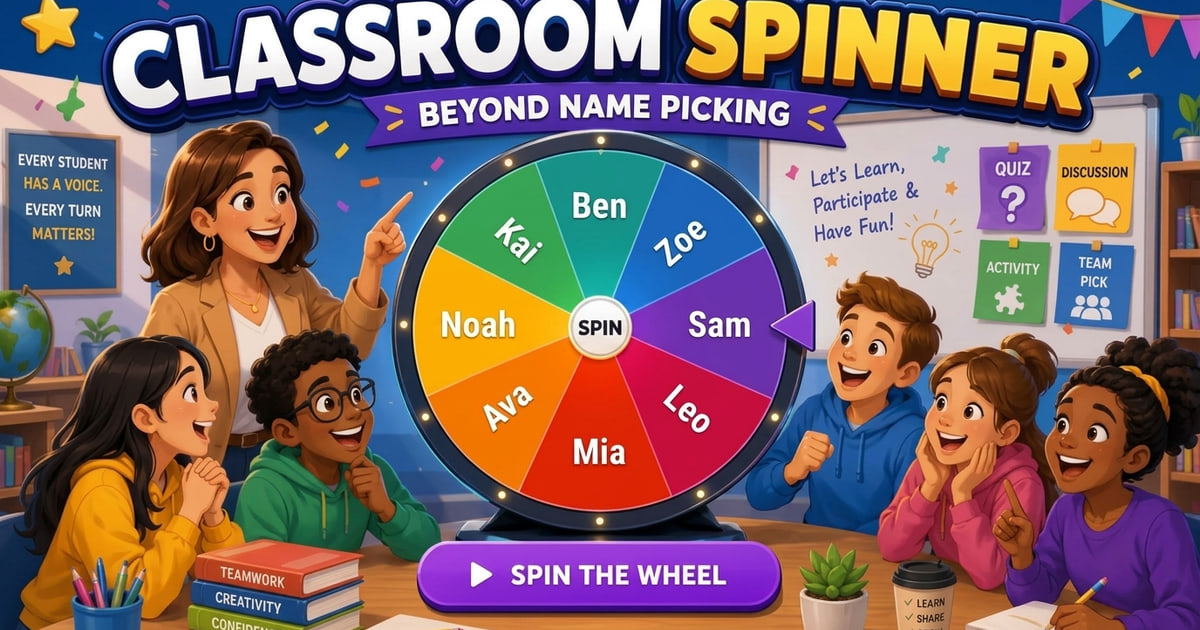
Once students trust a fair name spin, the same classroom spinner can run centers, substitute plans, and unit review.
This expansion guide assumes you already know volunteer calling and adds routines that change the labels, not the hardware.
1. After name picking is a habit
Teachers who already use a random student picker for cold calling do not need another twelve starter games. They need the next layer: the same projector, new labels, and a short script a substitute can follow.
Our earlier student-games guide covers volunteer spins, vocabulary lightning, and math minutes. Use that when you are introducing the wheel. Use this page when the class already expects a spin and you want centers, jobs, and review without buying another app.
Keep student data on the device. Paste first names or job titles; nothing is sent to our servers. That matches typical US classroom privacy expectations when you cannot create student logins.
2. Learning centers that rotate without arguing
Type center names on the classroom spinner: listening station, teacher table, independent work, devices. Spin once per table group with remove-after-pick so two groups cannot land on the same station in one rotation.
If you have four centers and four groups, four spins fill the first rotation. Reset the list, spin again for rotation two. Students watch the same wheel they already trust for names, so the argument about who goes to devices usually stops.
For mixed-age or inclusion rooms, put constraint labels on the wheel (quiet work, movement break) instead of room names. The spinner still decides; you still set the options.
3. Substitute plans that survive a locked laptop
Leave a bookmark to the classroom spinner and a printed card with the day's labels. The sub pastes the list, uses projector fullscreen, and turns on remove-after-pick. They do not need your gradebook login.
Download the printable game cards if Wi-Fi is down; they list setup lines for common spins. Pair that paper with first names on the board so the sub can still draw without the site.
Write one sentence in the sub plan: spin once, call on the name, do not re-spin until the list is empty. That single rule prevents the sub from skipping quieter students.
Printable setup cards for classroom spinner games; hand to a substitute or use when the projector fails.
4. Review without a new worksheet
Lock the ABCD spin wheel to four letters and project it. Ask a multiple-choice question, spin, and have the class show the letter with fingers or mini whiteboards. Remove-after-pick is optional when you want letters to repeat; turn it on when you are cycling through A, B, C and D once each for a warm-up.
The alphabet spinner still belongs in phonics and spelling. Exclude letters already used that week so the wheel only holds fresh glyphs. That is a real exclude panel, not a new word list you rewrite by hand.
Use the random number wheel for fact families and timers: set a range, spin a problem, then spin a second number as a challenge add-on. Small ranges show on the visual wheel; large ranges still return a number.
5. Classroom jobs and the hub layout
The classroom spinner page is a hub: student picker with history, balanced teams, and a countdown. Use jobs (line leader, librarian, tech helper) on the picker with remove-after-pick so weekly jobs do not stack on the same six students.
Team generator on that hub splits a pasted roster into even groups for labs. Announce team size before you generate so students see the math, not a mystery shuffle.
When you need only names, stay on the random student picker. When you need names plus teams plus a timer in one fullscreen layout, stay on the classroom hub.
6. One change this week
Keep your existing volunteer spin. Add one new label set, centers or jobs, and run it three days in a row. If students can explain the rule to a sub by Friday, the expansion stuck.
7. Frequently Asked Questions
No. Keep name picking for participation. This guide adds centers, jobs, and review on the same tools with different labels.
The classroom spinner hub if they need names, teams, and a timer. The random student picker if they only need to call on students.
The ABCD wheel is locked to A, B, C and D for multiple-choice call-outs. For more options, paste custom labels on the classroom spinner instead.
No. One teacher device on the projector is enough. Students watch; they do not log in.
The classroom game cards PDF is linked in this article and from the student-games guide. Print one set for the sub folder.
Try These Wheels
Put what you just read into practice with these free tools:
- Classroom Spinner
Teacher hub with three tabs: student spinner, team maker, and countdown timer, plus fullscreen mode for smartboards.
- Random Student Picker
Paste your class roster, spin in fullscreen mode, auto-remove picked students, and review session history so every kid gets a turn.
- ABCD Spin Wheel
Lock A-D for quiz call-outs, remove letters after each pick, and use projector fullscreen so the whole class can see the spin.
- Alphabet Spinner Wheel
Spin an A to Z alphabet wheel for phonics, word games, and letter-of-the-day picks. Exclude used letters and call the random letter on a smartboard.
- Random Number Wheel
Set minimum and maximum and the wheel reloads instantly for ranges of 30 or fewer. No-repeat mode shares one pool between the quick-pick button and the spin wheel.